Baza Drums
BAZA DRUMS — AI MIDI Drum-Pattern Generator
Create editable, musical drum grooves in seconds. BAZA DRUMS uses AI-assisted algorithms to generate MIDI patterns you can send to any DAW instrument or sampler — or straight to an external drum machine via MIDI. Your sounds, your mix, your rules.
Why BAZA?
- Generate, don’t preset. Choose from style-inspired models (House, Breakbeat, Hybrid and more). Set the vibe before you generate — use Continuity, Focus, Chaos, and Continue to decide how steady, tight, or unpredictable the groove will be.
- One-click instrument regen. Click the instrument label (e.g., KICK, SNARE, HATS) to regenerate only that instrument and keep the rest of the groove.
- Explorable variations. Each generation gives you multiple Variations you can browse, chain, and morph with VAR and Variation Speed — great for building longer phrases without manual editing.
- Producer-friendly editing. Per-instrument Velocity, Density, Shift, Note mapping and quick Mute/Lock let you lock what you like and re-roll the rest. Global Swing dials in the pocket, and one-click ADD 4/4 BD / SD / OH to lay down house foundations fast.
- Your sounds, anywhere. Drag-and-drop MIDI into your DAW, record BAZA’s MIDI output live, or route MIDI out to hardware drum machines/grooveboxes for hands-on jams.
Works in Your Setup
Compatible with almost all commercial DAWs — Ableton Live, Logic Pro, FL Studio, Bitwig, Studio One, Cubase, Reaper, Pro Tools, and more. Use BAZA DRUMS as a MIDI generator and route it to a Drum Rack, sampler, or kit, or send MIDI externally to hardware. Because it’s MIDI-only, you keep full control of sound design and processing.
Plugin formats: VST3, AU, and legacy VST2 (where supported).
Platforms: Windows and macOS (OS X).
+++ free bonus for the Ableton Live 12 users
You can also get for FREE the Baza Drums Kit Generator, an Ableton device that maps perfectly to the Baza Drums plugin MIDI notes. Load your samples once (11 Drum Racks, up to 128 samples per sound type), then generate nearly infinite drum kit variations with one click. This device is working just if you’re using Ableton Live 12.
Please send us an email to sales@baza.run with your Baza Drums VST license code, and we’ll get back to you with the download link for the Baza Drums Kit Generator.
BAZA DRUMS — User Manual
Overview
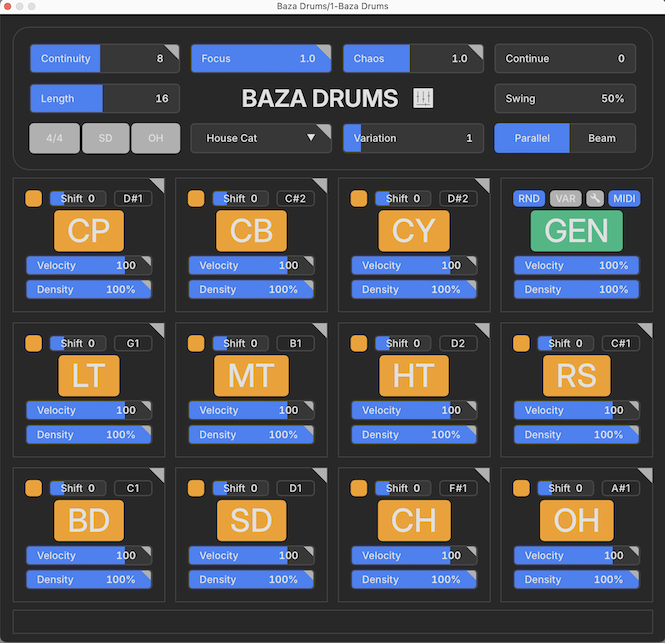
BAZA DRUMS is a MIDI drum-pattern generator built with AI-assisted algorithms curated by professional producers. It can create complex rhythmic structures in multiple styles (House, Breakbeat, Hybrid, etc.) without rendering audio.
Table of Contents
- Quick Start
- Functions
- UI Reference
- Models
- MIDI and DAW Setup
- License Activation
- Tips & Workflows
- Troubleshooting
- Changelog
Quick Start
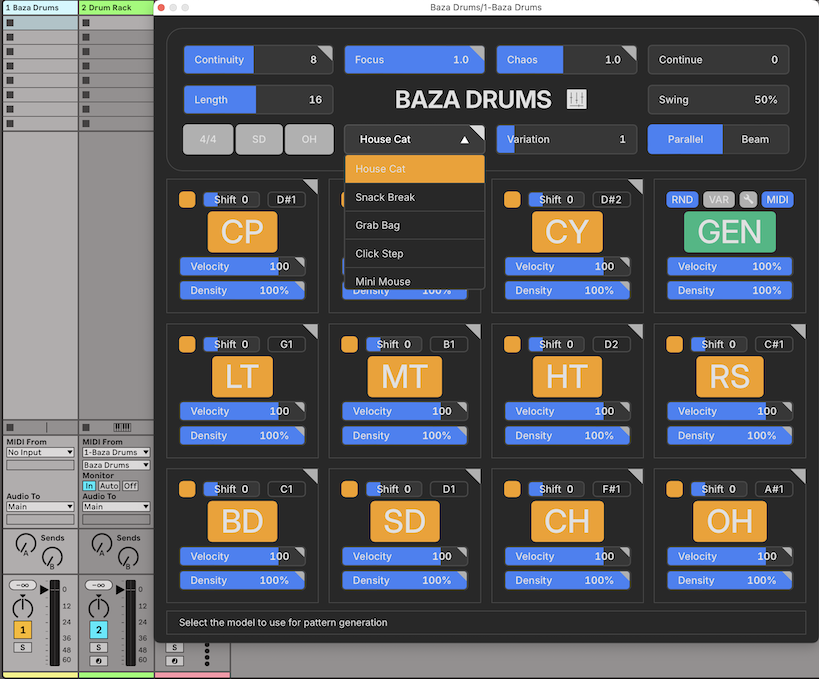
- Insert the plugin on a MIDI track.
- Route MIDI from BAZA DRUMS to your drum instrument (e.g., Drum Rack). For detailed routing, check MIDI and DAW Setups.
- Choose a Model (e.g., Grab Bag).
- Adjust Chaos, Focus, Continuity, and Length.
- Press GEN to create your first groove.
Functions
- Fine-tune pads using Velocity, Density, and Shift.
- To have more variations of the grooves, set Parallel or Beam, then hit VAR to blend them.
- Press RND to randomize the parameters for instruments and models. By pressing RND + Shift on your keyboard you can reset all parameters to default.
- Lock parameters from randomization by pressing the corner of that parameter (turns red when locked).
- You can lock a full instrument or more and generate the others without affecting the locked ones.
- Generate individual instrument patterns by pressing its name (e.g., CH for Closed Hat).
- Mute individual patterns by pressing the small yellow square in each instrument tab.
- Adjust Velocity per instrument or globally via the GEN tab.
- Adjust Density per instrument or globally to control note occurrence.
- Use Swing for groove (909-inspired), Length for step count (max 32), and Shift to offset an instrument pattern.
- Adjust Note mapping per pad to match your drum machine.
- Use 4/4, SD, OH buttons for basic House rhythms over your generated pattern.
- Toggle dark/light UI theme by pressing the Baza Drums logo.
- Record or drag MIDI patterns into your DAW clip lane.
UI Reference
Global Controls
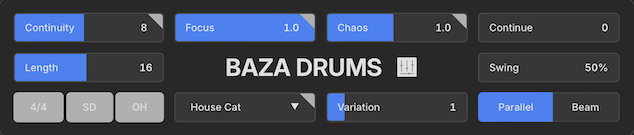
- Chaos – controls how adventurous the generator is. Lower = predictable; Higher = experimental.
- Focus – narrows note probability. Lower = tighter; Higher = looser.
- Continuity – determines how much context is carried when extending patterns.
- Length – pattern length in steps.
- Swing – groove offset (50% = straight).
- Continue – similarity to the previous pattern.
- Model – dataset name (e.g., Grab Bag).
- VAR – variations played.
- Parallel / Beam – select what type of variation is played.
- 4/4, SD, OH buttons for basic House rhythms over your generated pattern
GEN controls
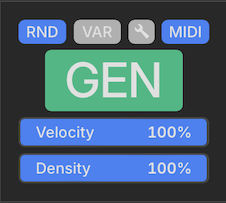
- GEN — generates the pattern.
- RND — randomizes parameters.
- Tools - the tools for random function and variation function.
- VAR — enables variation chaining.
- MIDI — drag & drop MIDI pattern to DAW (if supported).
- Velocity — pattern velocity scale.
- Density — pattern density.
Instrument Controls
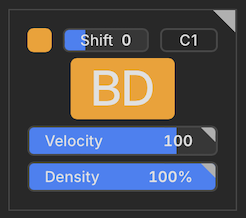
Each instrument pad includes:
- Mute toggle - the small orange square on the up left.
- Shift — per-instrument one step offset.
- Note — note mapping (C1, D#1, etc.).
- Velocity — instrument velocity scale.
- Density — note density per instrument.
- "instrument name" — generate a pattern just for that respective instrument based on selected model.
Tip: CH (Closed Hat) choke OH (Open Hat) if enabled.
Tools Controls
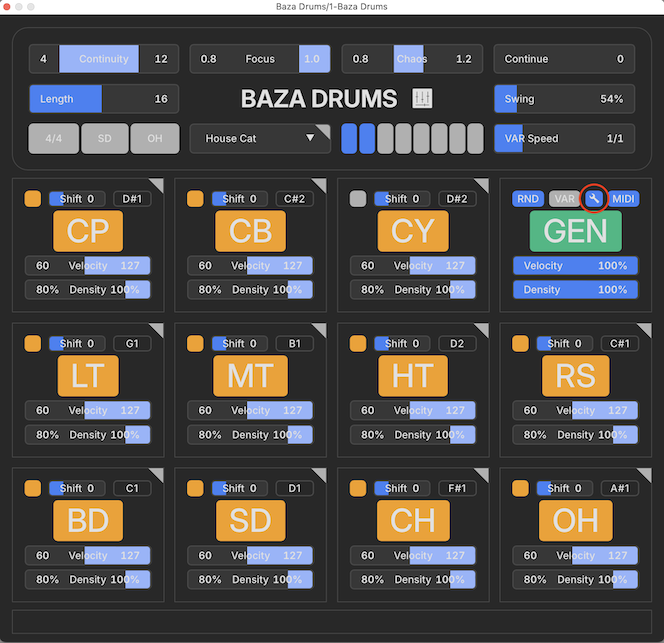
- Tools - these are the controls for random function and variation function and appear after pressing the tool icon.
- The Continuity, Focus, Chaos, Instrument Velocities, and Instrument Densities tabs change their color to a lighter blue, indicating the range of values within which randomness can be applied for those particular controls.
- In this mode, the Variation Tab displays the selection panel for the 8 variations. One or more variations can be enabled — only the active ones will be played. If more than one variation is selected, the plugin will play them sequentially from left to right, depending on the variation speed.
- The Variation Speed (VAR Speed) controls how much of the current variation is interpolated with the next one in the sequence. If 1/1 is selected, the variation will play until the end before the next one starts. If 1/2 is selected, only half of the variation will be played, blending into the second half of the next one, and so on.
Default MIDI Notes
| Pad | Name | Note (GM) |
|---|---|---|
| BD | Kick | 36 (C1 / C2) |
| SD | Snare | 38 (D1) |
| CH | Closed Hat | 42 (F#1) |
| OH | Open Hat | 46 (A#1) |
| RS | Rimshot | 37 (C#1) |
| LT | Low Tom | 43 (G1) |
| MT | Mid Tom | 47 (B1) |
| HT | High Tom | 50 (D2) |
| CP | Clap | 39 (D#1) |
| CB | Cowbell | 49 (C#2) |
| CY | Cymbal | 51 (D#2) |
Models
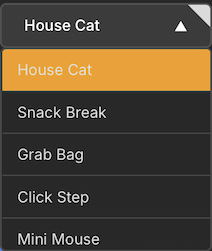
instead of explicit style names, BAZA DRUMS uses neutral model names (e.g., House Cat, Grab Bag) that generate stylistic data internally.
there are 20 models that you can change from the Model tab and every model can be altered by the Model controls: Continuity, Focus, Chaos and Continue.
Model Controls

- Continuity: defines the AI’s memory span (low = varied, high = cohesive).
- Focus: lower values = precise; higher = looser grooves.
- Chaos: higher values = unpredictable, complex grooves.
- Continue: determines similarity to the previous pattern.
Parallel and Beam Logic

- Variation: 8 drum patterns generated per GEN press called variations.
- Parallel: similar vibe patterns for smooth long grooves.
- Beam: contrasting patterns for diversity and fills.
- Enable/Disable: You can chain two or more variations for dynamic playback if "Var" is activated, this tab appears when the tool icon is pressed.
- Variation Speed: sets morph rate (1/1, 1/2, 1/4, 1/8, 1/16) between chained patterns, this tab appears when the tool icon is pressed.
Tip: start with two variations to focus on real-time morphing of those two variations then add more.
MIDI and DAW Setup
BAZA DRUMS outputs MIDI only — no audio. Route it to your drum sampler.
Ableton Live
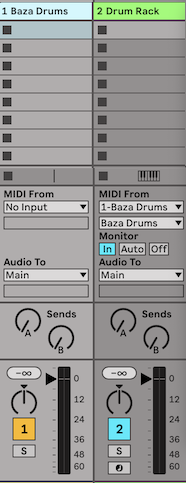
- Place BAZA DRUMS on Track 1.
- On Track 2, load a Drum Rack.
- Set 'MIDI From → 1-Baza Drums → Baza Drums' and 'Monitor → In'.
Logic Pro
- Use as a MIDI FX plugin before your instrument.
- Alternatively, route via external MIDI track if needed.
FL Studio / Bitwig / Studio One / Reaper
Use standard routing for MIDI-generating VSTs.
Exporting MIDI
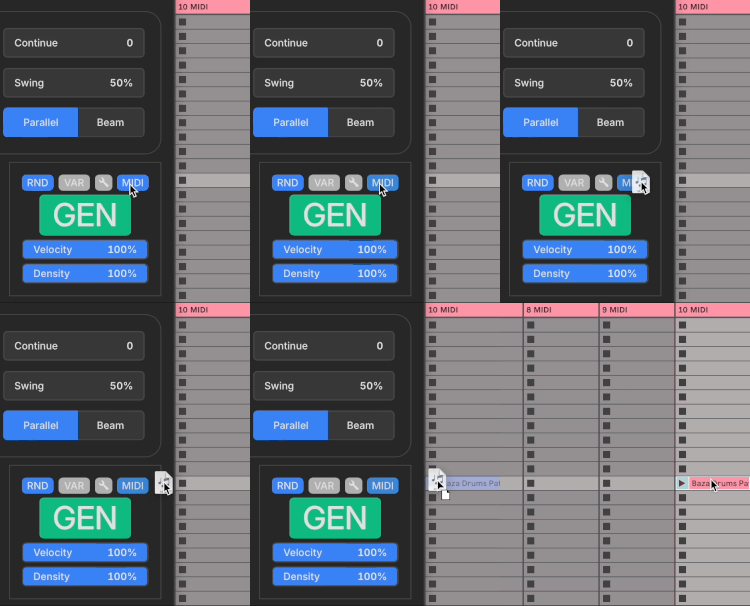
- Drag & drop from the MIDI button in the GEN tab.
- Click the MIDI button to save to a file.
- Or record MIDI output live.
License Activation
After purchasing the license code you can manage your active devices at https://baza.run/identity/account/manage/licenses
For any problem related to this and other license problems you can send en email to support@baza.run
Troubleshooting
| Problem | Cause | Solution |
|---|---|---|
| No sound | BAZA DRUMS outputs MIDI only | Add a drum sampler/instrument and route MIDI correctly. |
| Wrong drums | MIDI notes mismatched | Adjust mapping in Settings → Mapping. |
| Timing feels off | Shift or Swing mis-set | Reset Swing=50% and Shift=0 for critical tracks. |
| Too busy | Density too high | Lower Density per pad or reduce Chaos. |
| DAW not recording MIDI | Routing issue | Arm receiving track or enable 'Record MIDI Out'. |
For detailed routing, check MIDI and DAW Setups.
Tips & Workflows
Work in progress!